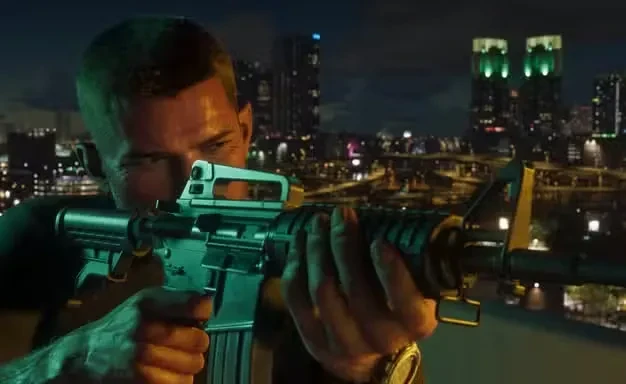
One of the first changes you'll notice when the action begins in GTA 6 is the new reticle design. In previous GTA games and even in Red Dead Redemption 2, players were accustomed to a small dot in the center of the screen. This time, Rockstar has replaced it with a new design featuring three dashes.
Fortunately, you can change the reticle's appearance in the settings, and the classic single-dot design is still available. There are also several additional options that let you customize its size, visibility, and other aiming indicators.
How to Change the Reticle in GTA 6
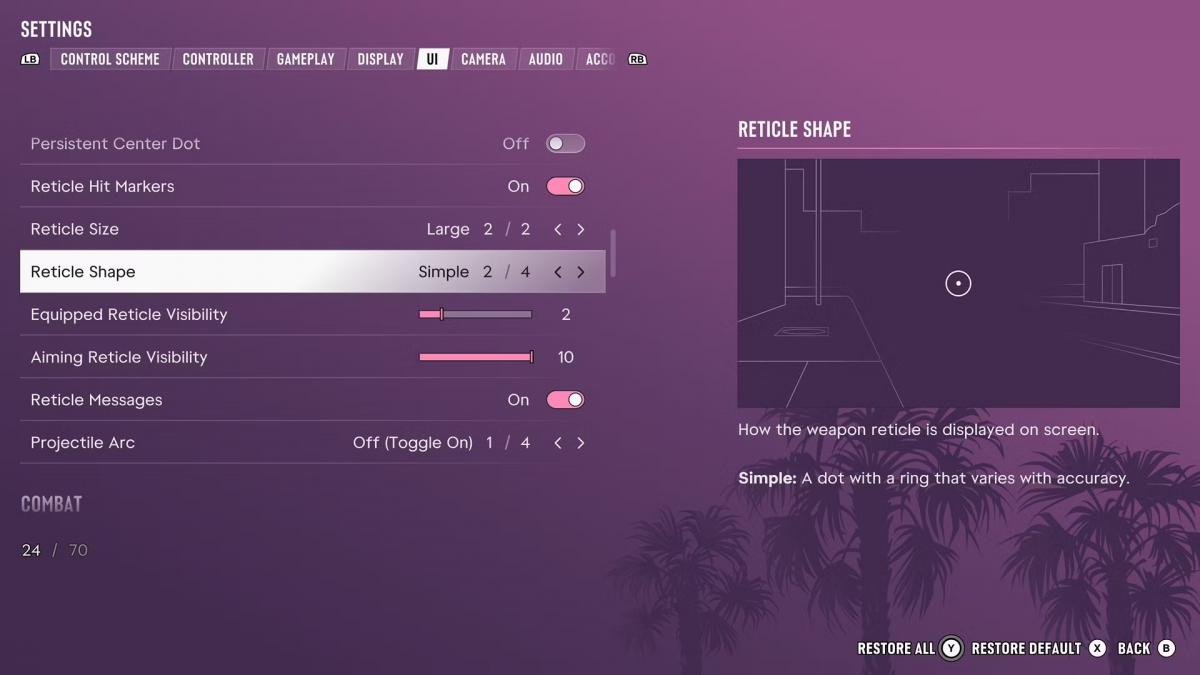
Pause the game and open the Settings menu. Next, navigate to the UI tab and scroll down until you find the Reticle section.
Here, you'll find several customization options. The main one is Reticle Shape, which offers four different designs:
-
Complex: The default reticle, featuring three dashes.
-
Simple: A single dot in the center surrounded by a circle. This option works well with both precision weapons and shotguns.
-
Dot: The classic reticle from previous GTA games, displaying only a single dot.
-
None: Removes the aiming indicator entirely. This option is suited to players who prefer a more challenging or realistic shooting experience.
You can also adjust the reticle's size using two available settings.
In addition to its appearance, you can enable or disable Hit Markers. These are the four X-shaped indicators that appear when your bullets hit a target. If you prefer a more hardcore experience, you can turn them off.
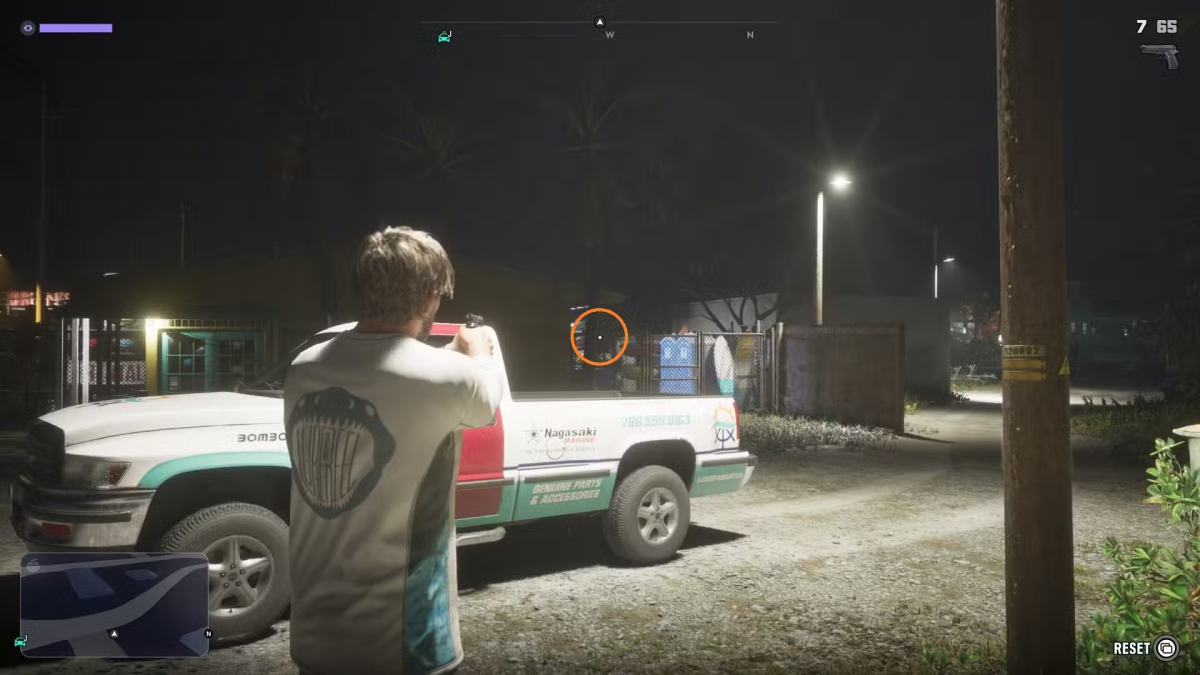
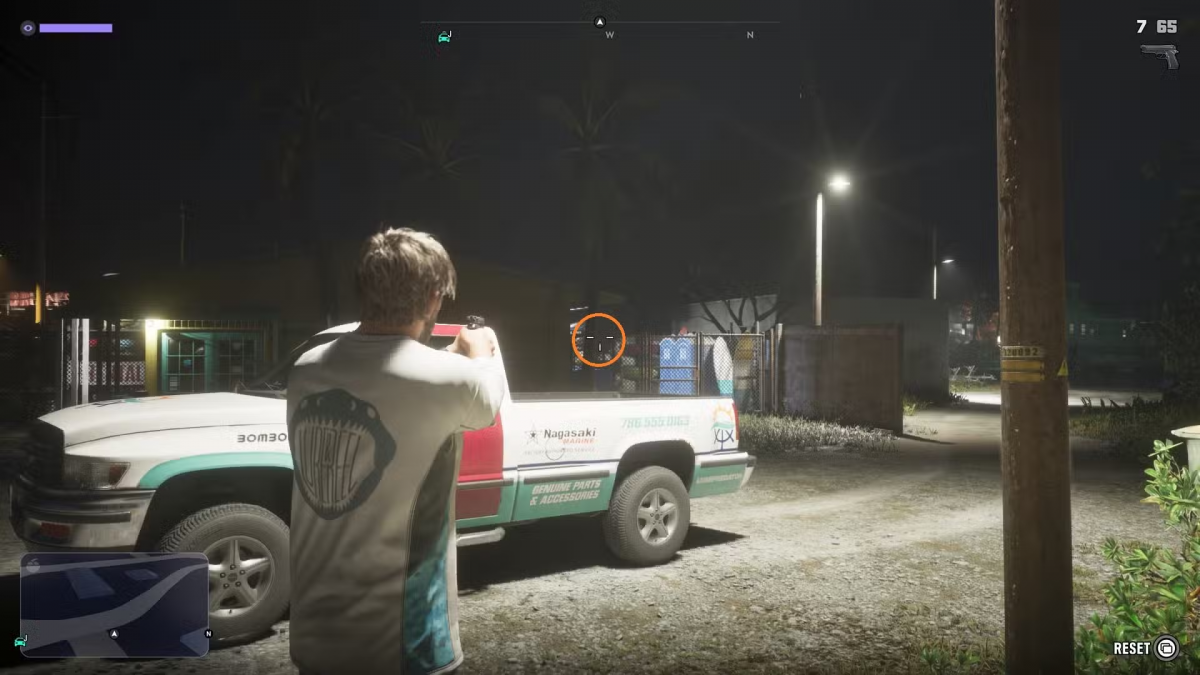
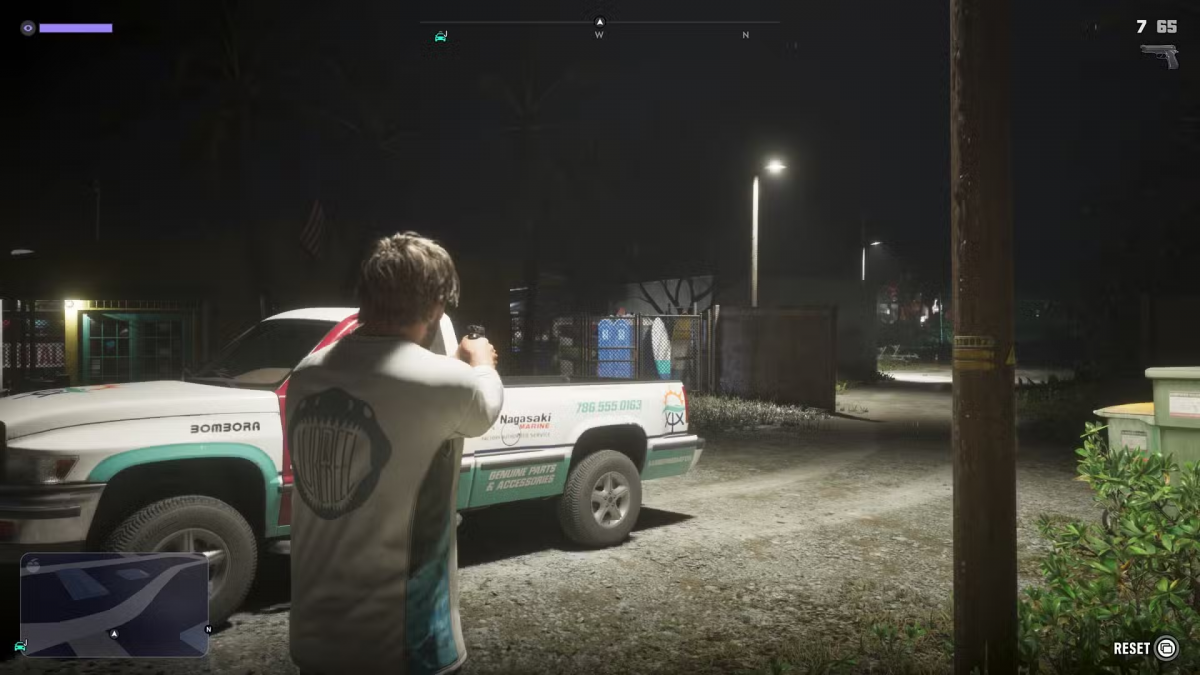
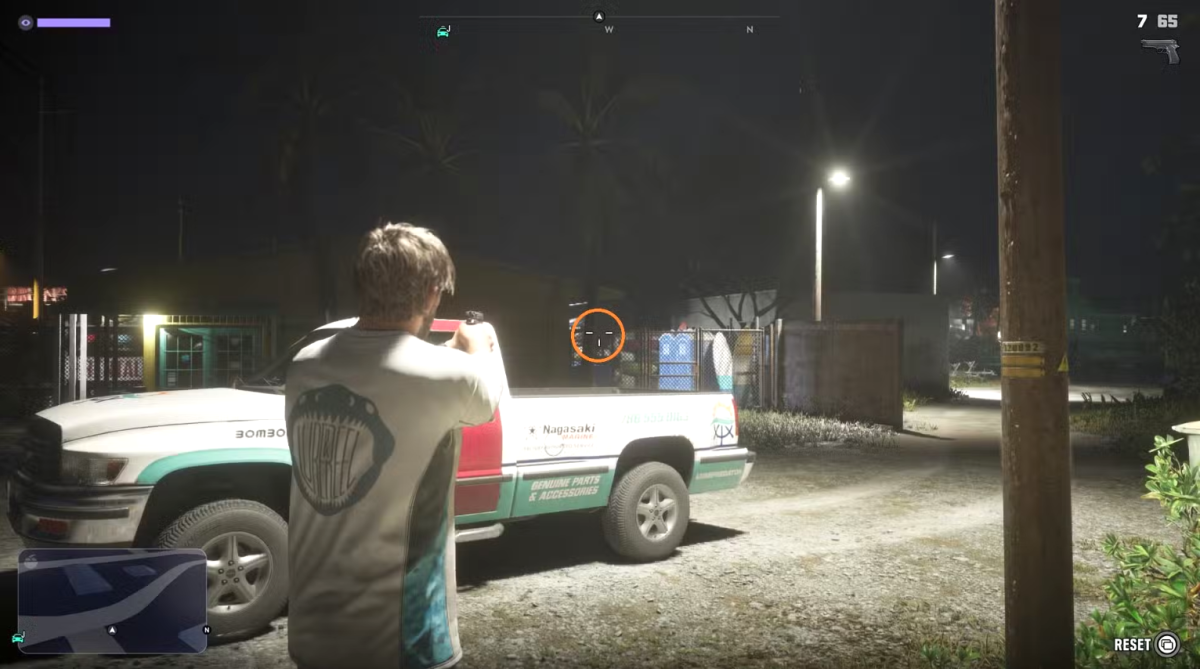
Another available option is Persistent Center Dot. When enabled, it keeps a small dot in the center of the screen at all times, even when you don't have a weapon equipped.
You can also adjust the reticle's transparency in two different situations: while aiming down sights and when holding a weapon without aiming.
Finally, GTA 6 lets you customize the projectile arc displayed when using throwable items and explosives. You can turn the arc off completely for a more realistic experience or select the toggle option. This allows you to enable or disable the trajectory display during gameplay by pressing R3 or R, depending on your control setup.


Comments