
Players may encounter slow download speeds when preloading GTA 6 or downloading the full 212 GB on launch day, as millions of PS5 and Xbox Series X|S players attempt to access the servers at once. Heavy traffic on PlayStation Network and Xbox Live, game code redemptions, and built-in console bandwidth limitations can all slow downloads.
If your GTA 6 installation or update is taking much longer than your internet connection would normally suggest, try the fixes below to eliminate local network bottlenecks and potentially improve your download speed.
Fully Close Any Running Games in the Background
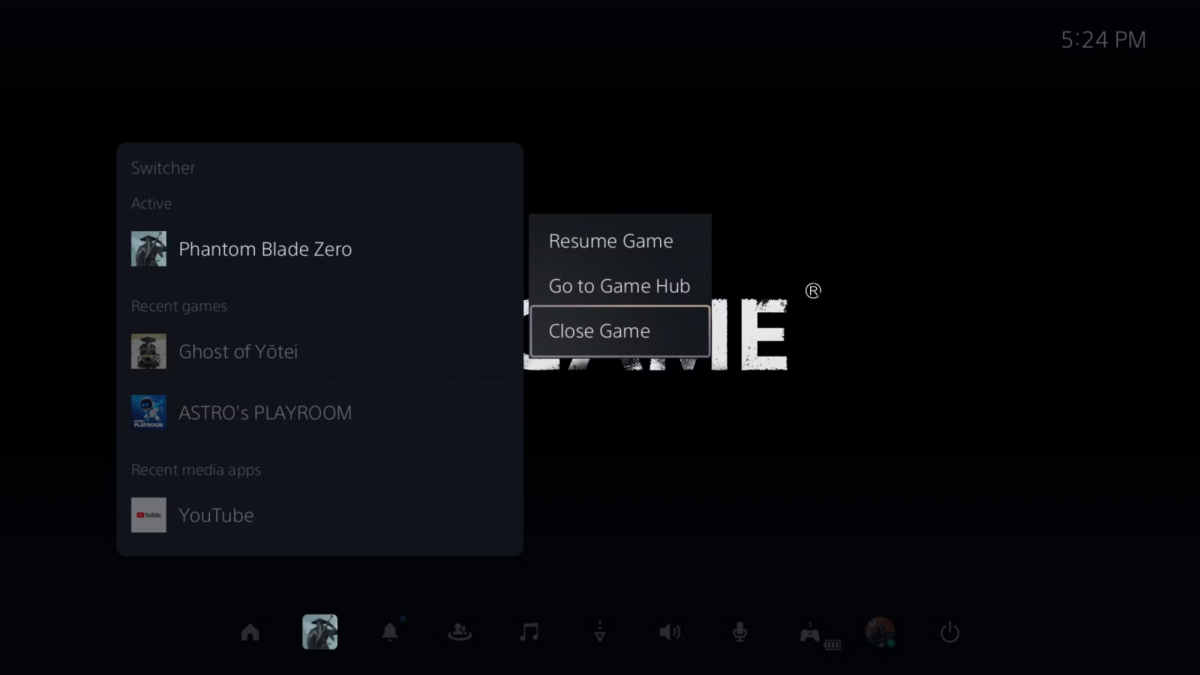
Both PS5 and Xbox Series X|S can reduce download speeds when a game or application is running in the background. This can happen because the console reserves system resources and network bandwidth for active sessions, potentially suspending downloads or cutting your download rate by more than half.
Here's what you need to do to prevent this.
Close Background Games or Apps on PS5
-
Press the PS Button on your controller.
-
Open the Control Center and highlight the active game or application.
-
Press the Options button, then select Close Game or Close App.
Close Background Games or Apps on Xbox
-
Press the Xbox Button on your controller.
-
Go to My Games & Apps > See All.
-
Navigate to Manage, then Queue.
-
Select Suspend My Game at the top of the screen.
Pause & Resume Downloads to Switch Download Servers
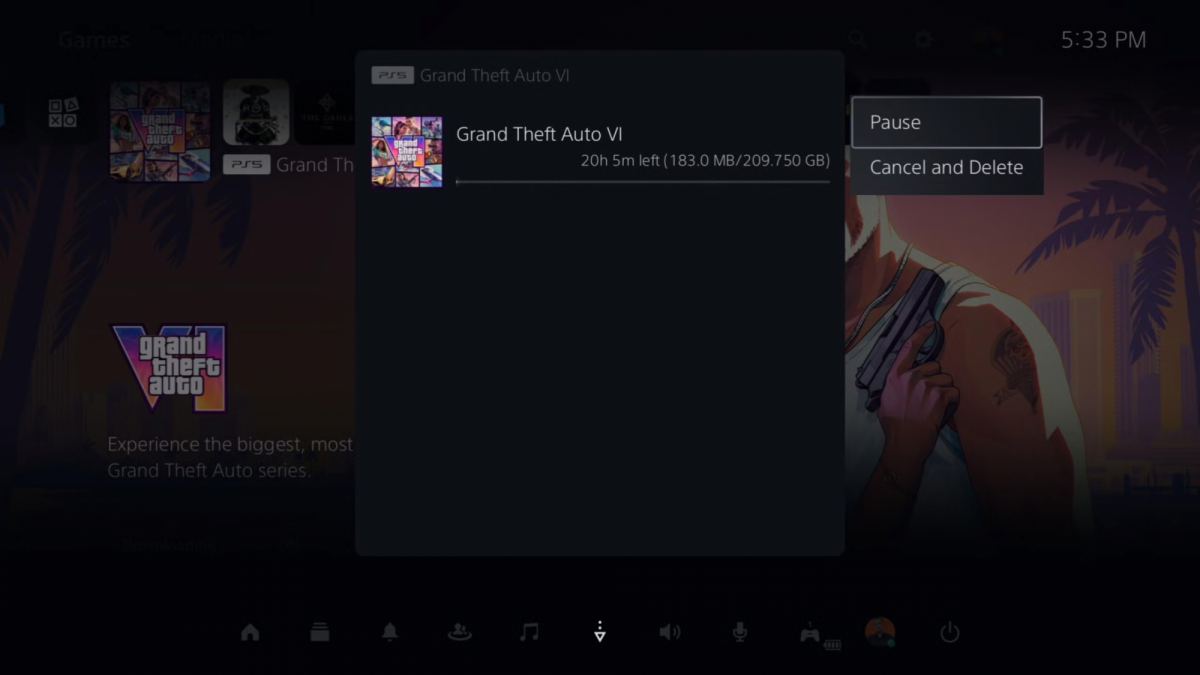
When millions of consoles download 212 GB of GTA 6 files or a launch-day patch simultaneously, Content Delivery Network (CDN) nodes on PSN and Xbox Live can become congested. If your console connects to an overloaded server, download speeds may drop significantly, even when you're using a gigabit fiber connection.
Pausing the download and waiting 30 to 60 seconds before resuming may help your console establish a new connection and potentially route the transfer through a less crowded server. This isn't guaranteed to improve speeds, but it's a quick troubleshooting step worth trying.
Force 5 GHz Wi-Fi or Connect an Ethernet Cable
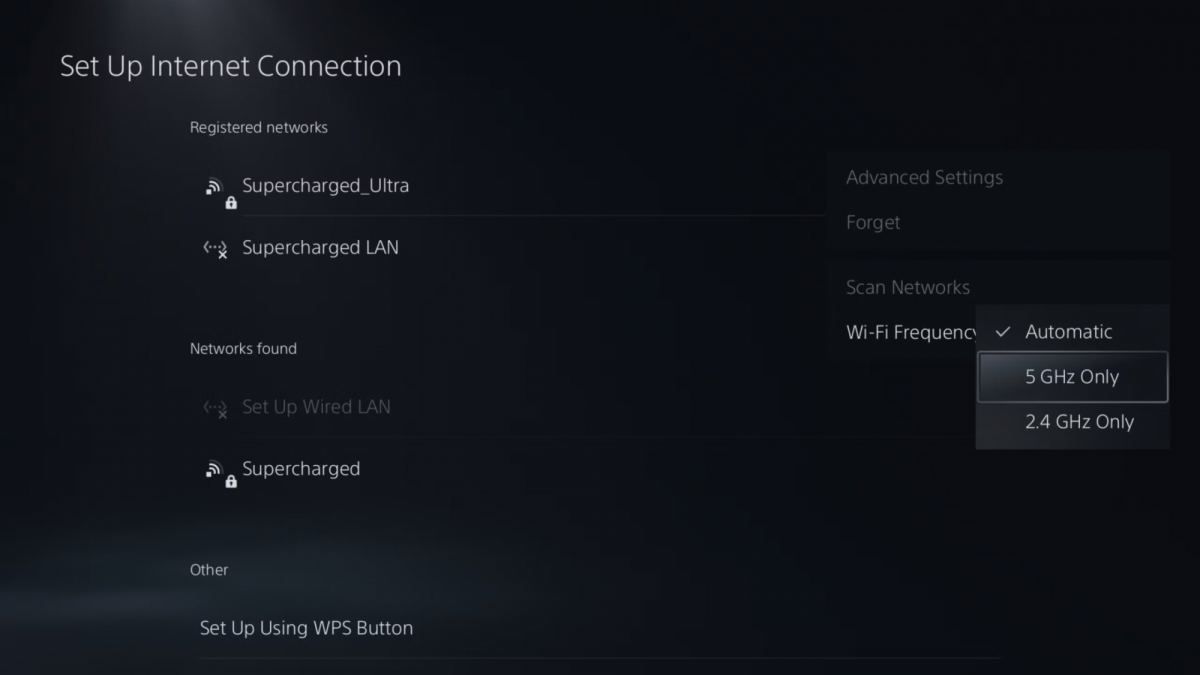
If your PlayStation 5 or Xbox Series X|S is connected through Wi-Fi, make sure you're using the 5 GHz frequency band or switch to a wired connection.
-
PS5: Go to Network Settings, highlight your active Wi-Fi connection, and select 5 GHz Only.
-
Xbox Series X|S: Connect to your router's dedicated 5 GHz Wi-Fi network. Xbox consoles don't provide an option to force 5 GHz when connected to a combined 2.4 GHz and 5 GHz network.
If your internet connection is capable of higher speeds but your router doesn't support 5 GHz or newer Wi-Fi bands, consider upgrading your router or using a wired connection.
Alternatively, connect your PS5 or Xbox Series X|S directly to your router with a Cat6 Ethernet cable. This removes wireless interference and can provide a more stable connection. If you want reliable internet connectivity while downloading large games, a wired connection is worth considering.
Switch Your Console DNS Settings
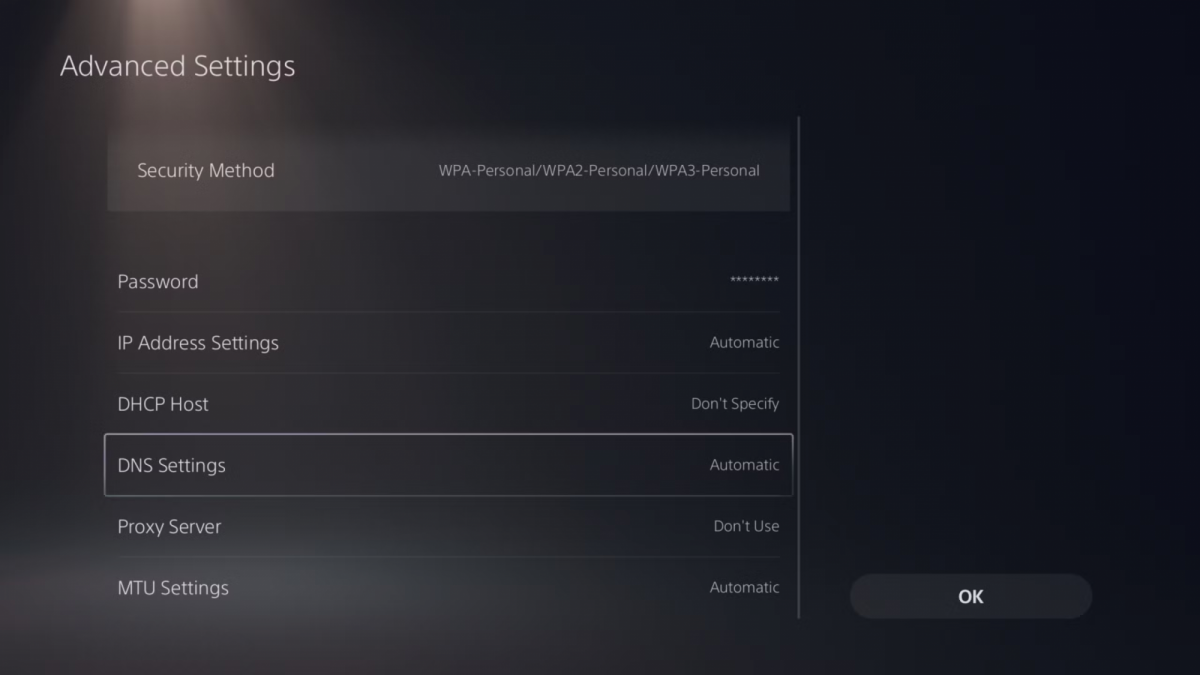
Your Internet Service Provider's default DNS server may not always provide the fastest response when your console connects to nearby PlayStation or Microsoft services, especially during periods of heavy traffic.
Switching to a public DNS service such as Cloudflare or Google may improve DNS resolution, although it doesn't guarantee faster downloads or a different CDN server.
Here are the DNS addresses you can try:
Google:
-
Primary DNS:
8.8.8.8 -
Secondary DNS:
8.8.4.4
Cloudflare:
-
Primary DNS:
1.1.1.1 -
Secondary DNS:
1.0.0.1
How to Change DNS on PlayStation 5
-
Navigate to Settings > Network > Settings > Set Up Internet Connection.
-
Highlight your active network connection, press Options, and select Advanced Settings.
-
Set DNS Settings to Manual and enter either Google's or Cloudflare's DNS addresses listed above.
How to Change DNS on Xbox Series X|S
-
Navigate to Settings > General > Network Settings > Advanced Settings.
-
Select DNS settings and choose Manual.
-
Enter one of the DNS address pairs listed above, then restart your console.
Prevent Standby Downloads From Stalling in Rest or Sleep Mode
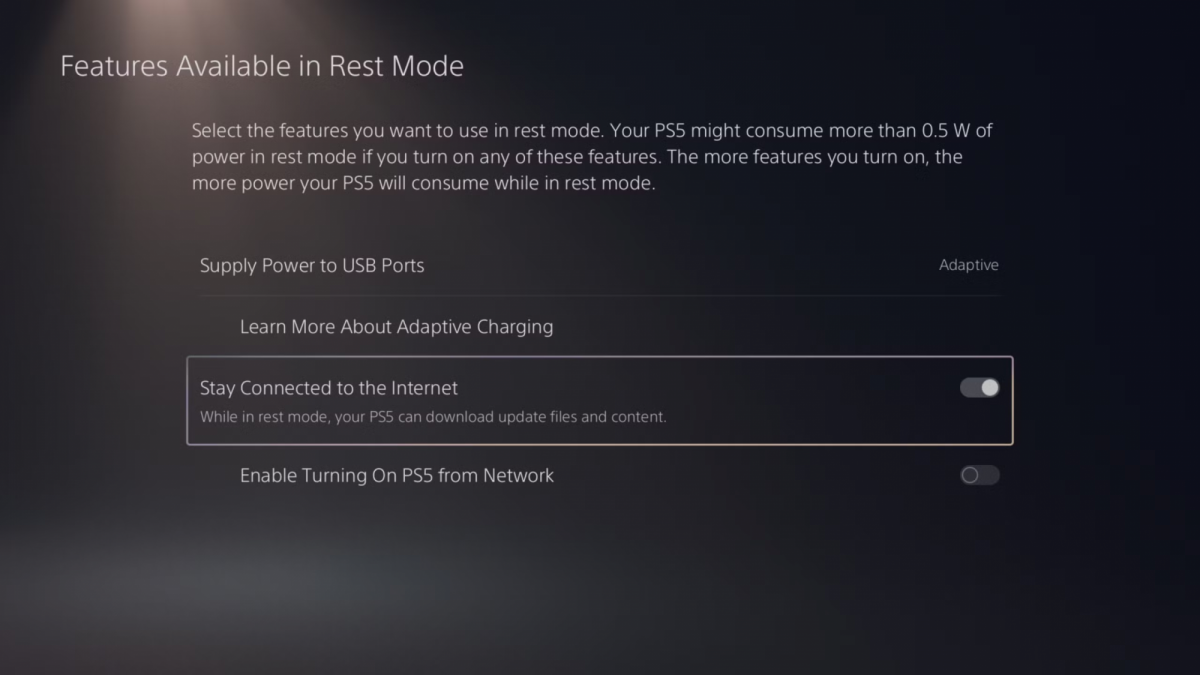
If you leave GTA 6 downloading overnight or while you're away from your console, you might return to find that the progress bar has stopped moving. One possible cause is your Rest or Sleep Mode configuration, which can prevent background downloads from continuing.
Here's how to check these settings.
How to Change Rest Mode Settings on PlayStation 5
-
Navigate to Settings > System > Power Saving.
-
Open the Features Available During Rest Mode menu.
-
Turn on Stay Connected to the Internet.
How to Change Sleep Mode Settings on Xbox Series X|S
-
Navigate to Settings > General > Power Options.
-
Switch the power option from Shutdown (energy saving) to Sleep mode.


Comments