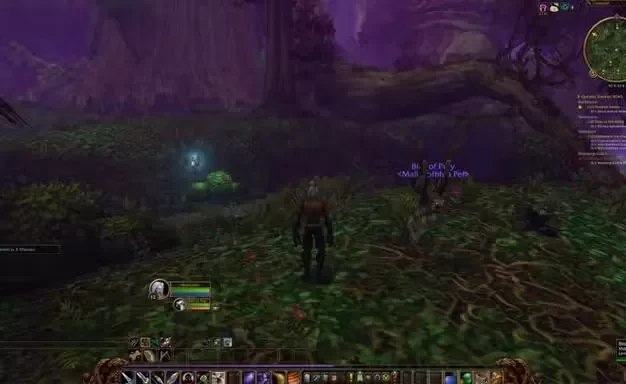
Choosing the right graphics settings in World of Warcraft: Forever can make a noticeable difference to both performance and visual quality. The updated version of Azeroth features improved lighting, shadows, water, fog, and environmental effects, but some of these options can put considerable pressure on your graphics card.
You don't necessarily need to turn everything down to get a smoother experience. The trick is to identify the most demanding settings, reduce them where necessary, and preserve the details that make the world look good. This guide covers recommended configurations for weaker and high-end PCs, along with explanations of the options that have the biggest impact on performance.
Best WoW Forever Settings for Performance and FPS
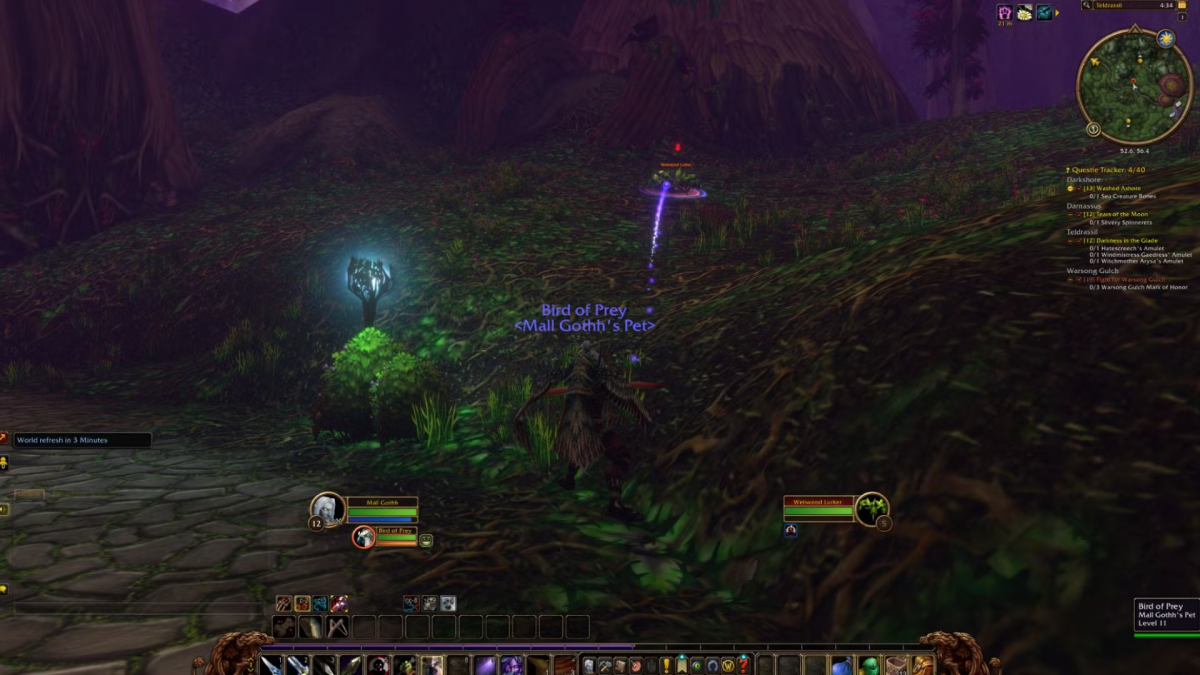
If you're playing on a budget PC, an older graphics card, or a laptop, start with the following settings. They prioritize a stable frame rate without making the entire game look unnecessarily blurry or stripped down.
-
Display Mode: Windowed Fullscreen.
-
Resolution: Your monitor's native resolution.
-
Render Scale: 100% initially; lower it to 90%, 80%, or 75% if performance remains poor.
-
Secondary Lighting: Fair.
-
Compute Effects: Low.
-
Shadow Quality: Low.
-
SSAO: Low or Disabled.
-
Texture Resolution: High, provided your graphics card has enough VRAM.
-
PBR Liquid Detail: Fair or Good.
-
Particle Density: Low or Good.
-
Spell Density: Essential.
-
Projected Textures: Enabled.
-
View Distance: Around 5.
-
Environment Detail: Around 5.
-
Ground Clutter: Around 3–5.
The most important adjustments are usually Secondary Lighting, Shadow Quality, Compute Effects, and Render Scale. These options can have a much greater performance impact than reducing every environmental detail setting.
Keep Texture Resolution relatively high if your graphics card has enough video memory. Lowering texture quality can make the game look noticeably worse without necessarily providing the same performance improvement as reducing lighting or rendering resolution.
Projected Textures should remain enabled, even on weaker PCs. This option helps display important ground effects during combat, including encounter mechanics that players need to recognize. Setting Spell Density to Essential also reduces visual clutter in busy fights while keeping important spell effects visible.
Additional Tips for Low-End PCs
If the game still struggles after applying the settings above, try these adjustments:
-
Lower Render Scale to 90%. If that isn't enough, test 80% or 75%.
-
Reduce Secondary Lighting and Shadow Quality before lowering texture resolution.
-
Disable SSAO if you need a few more frames.
-
Keep Spell Density on Essential when entering dungeons, raids, or crowded areas.
-
Lower View Distance and Ground Clutter if performance remains inconsistent.
Render Scale is particularly useful because it changes the resolution at which the game renders the scene. A lower value means fewer pixels for your GPU to process, which can improve FPS, but the image will become softer. Avoid reducing it more than necessary.
Best WoW Forever Settings for Graphics Quality
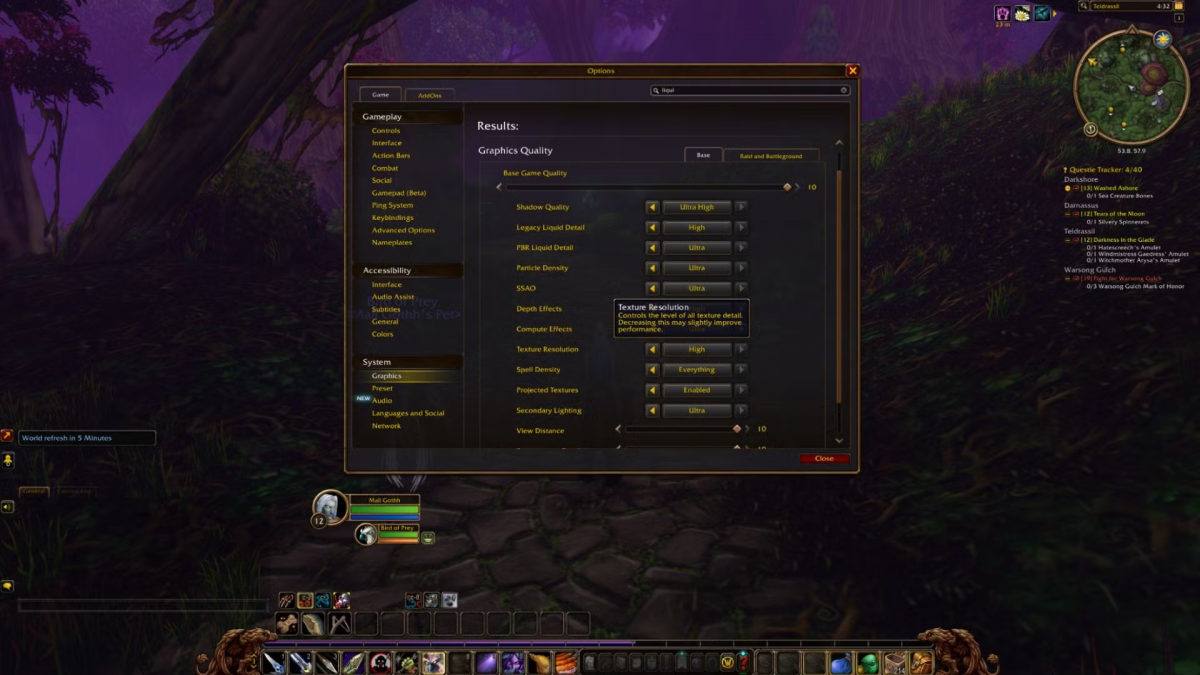
Players with powerful gaming PCs can increase most graphics options while maintaining a smooth experience. The following configuration is a good starting point if you want to enjoy the updated environments without spending performance on every maximum setting.
-
Display Mode: Windowed Fullscreen.
-
Resolution: Your monitor's native resolution.
-
Render Scale: 100%.
-
Secondary Lighting: Good.
-
Compute Effects: High.
-
Shadow Quality: High.
-
SSAO: Good or High.
-
Texture Resolution: High.
-
PBR Liquid Detail: Good or High.
-
Particle Density: Good or High.
-
Spell Density: Essential or Everything.
-
Projected Textures: Enabled.
-
View Distance: 7–10.
-
Environment Detail: 7–10.
-
Ground Clutter: 7–10.
You can increase most options further if your graphics card has enough performance headroom. However, Secondary Lighting and Compute Effects deserve special attention. Their highest settings can be relatively demanding, and the visual improvement may not justify the performance cost in every situation.
Keep Render Scale at 100% as your starting point. Increasing it above 100% can produce a sharper image, but it also increases the rendering workload. For most players, native resolution with a 100% Render Scale is a sensible balance.
You should also enable Projected Textures regardless of your hardware. This is especially important in group content, where visible ground effects can help you recognize dangerous areas and other encounter mechanics.
How to Get the Best Balance Between Graphics and FPS
If you don't want to sacrifice visual quality or chase the highest possible frame rate, a balanced configuration is usually the better choice. Start with these recommendations:
-
Keep native resolution and Render Scale at 100%.
-
Set Secondary Lighting to Fair or Good.
-
Use Good or High Shadow Quality.
-
Set Compute Effects to Low or Good.
-
Keep Texture Resolution on High.
-
Use Good PBR Liquid Detail.
-
Set SSAO to Low or Good.
-
Keep Spell Density on Essential for group content.
-
Enable Projected Textures.
-
Adjust View Distance and environmental details according to your preferences.
This setup preserves much of WoW Forever's improved visual presentation while reducing some of the more demanding effects. You can then increase individual options if your PC has performance to spare.
How to Test Your Graphics Settings
Don't judge your configuration by standing in an empty area. Performance can change significantly depending on the number of players, enemies, spell effects, and environmental details on screen.
For a more reliable test:
-
Visit a busy capital city and check your frame rate.
-
Travel to an open-world area and compare performance.
-
Enter a dungeon or raid to see how the game handles multiple spell effects.
-
Change one graphics option at a time and check whether it actually improves performance.
-
Set a reasonable foreground FPS limit based on the frame rate your PC can maintain consistently.
If your FPS drops mainly in crowded cities or raids, lowering every graphics option may not solve the problem. The game can also become limited by your CPU, so it's worth checking whether the performance issue is GPU-related before making drastic visual sacrifices.
A frame rate cap can also help keep performance consistent. Instead of allowing FPS to fluctuate wildly, choose a limit that your computer can maintain during normal gameplay. Matching your monitor's refresh rate is a reasonable starting point, but a lower stable limit can feel better than an inconsistent higher one.


Comments