
If you've started playing GTA 6, you might find its controls quite different from what you're used to. Running is now assigned to L3, crouching uses Circle, and jumping and climbing have been moved to the X button. The new control scheme differs from both GTA 5 and Red Dead Redemption 2, but Rockstar Games has included an option that brings back a more familiar layout.
By switching to the Classic Control Scheme, you can restore several of the button assignments from previous GTA games and make the transition to GTA 6 more comfortable.
How to Get Classic Controls in GTA 6
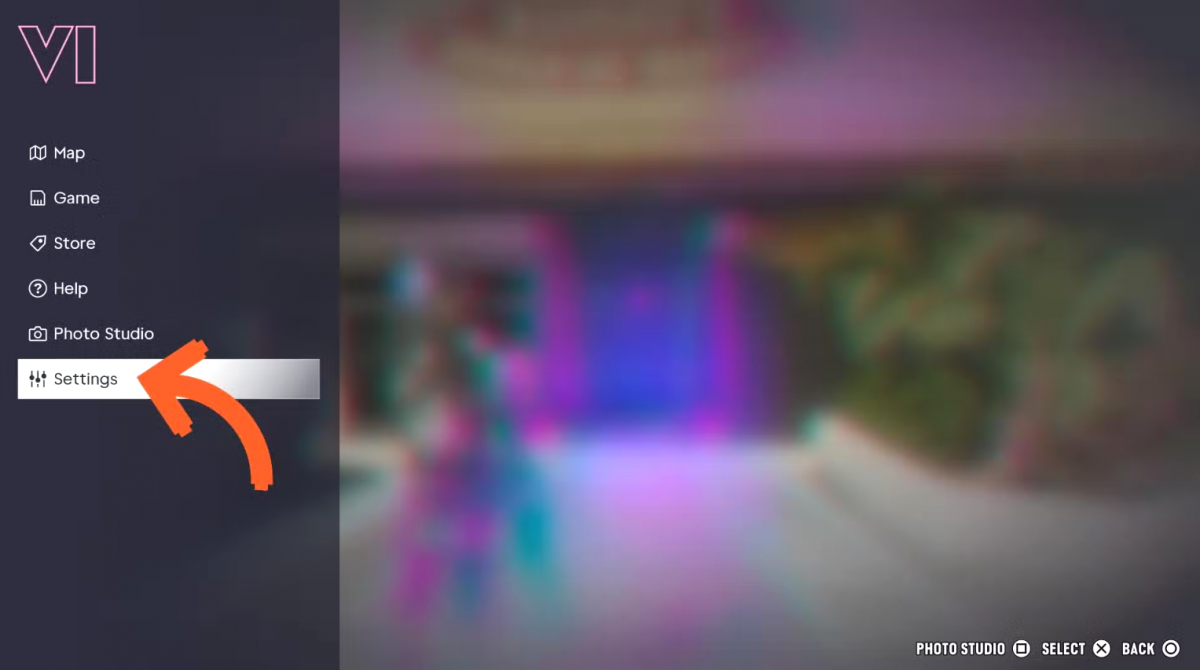
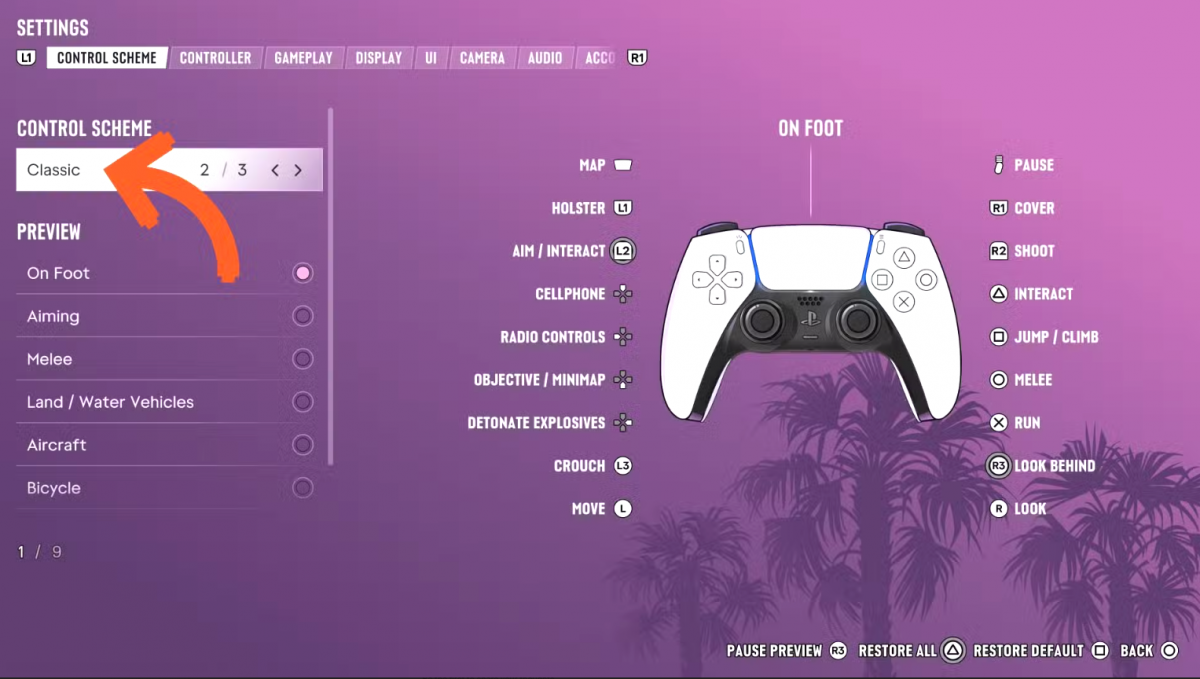
To change your controls, open the pause menu by pressing Options, then select Settings. In the first tab, Control Scheme, use the D-Pad to switch from Default to Classic.
To save your selection, back out of the menu by pressing Circle, then hold X to confirm.
The Classic Control Scheme changes the following button assignments:
|
Button |
Action |
|---|---|
|
X / A |
Run / Sprint |
|
Circle / B |
Melee |
|
Square / X |
Jump / Climb |
|
L3 |
Crouch |
With Classic controls enabled, you can tap X / A repeatedly to run instead of pressing L3. Jumping and climbing are also assigned to Square / X again, making these actions feel more familiar to players who have spent years with the previous control layout.
All other controls remain unchanged. Only the four button assignments listed above are affected by this setting.
Switching to Classic controls can make GTA 6 feel much closer to the previous games, especially if you're used to repeatedly tapping a button to sprint. It may also take some pressure off your left stick, although old habits can be difficult to break!


Comments