The stunning visuals of GTA 6 make Photo Mode an essential feature for players who want to capture memorable moments across Leonida. Fortunately, you don't have to wait long to unlock it. The game gives you access to Photo Mode right from the beginning, with plenty of settings to help you create unique screenshots and bring your creative ideas to life.
You can also use your smartphone's camera to take regular photos and selfies. Here's how to access both options and make the most of their features.
How to Use Photo Mode in GTA 6
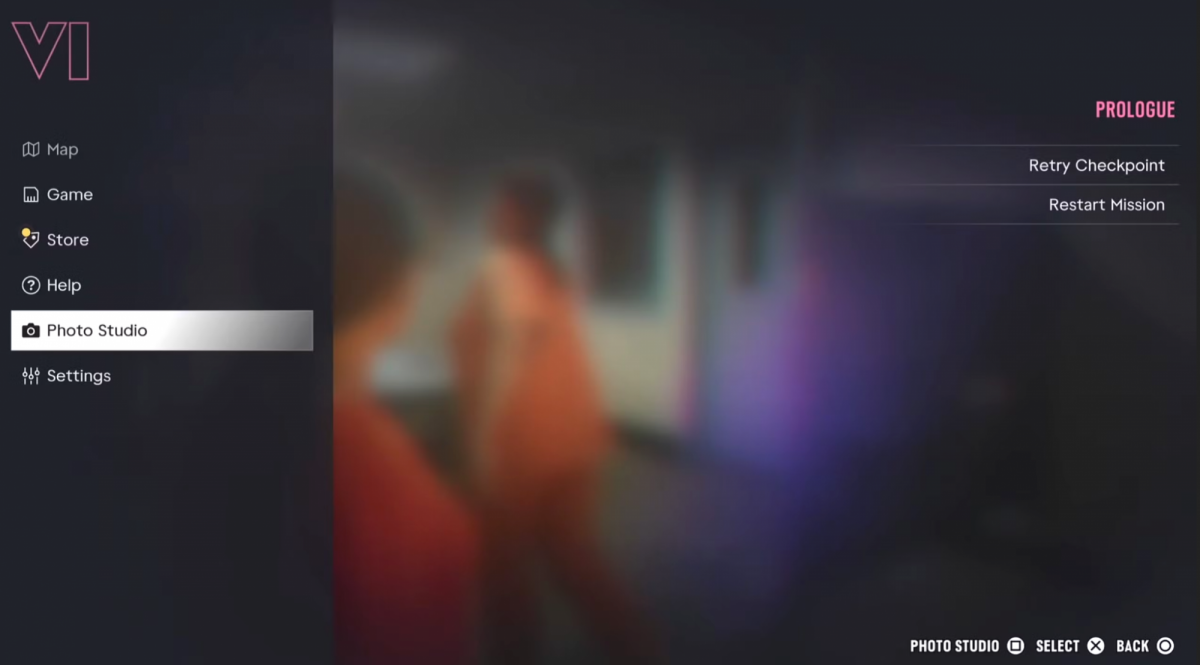
Players can use Photo Mode shortly after taking control of Lucia during the prologue. Simply press the Start button to open the pause menu, then select Photo Mode.
GTA 6 Photo Mode Features
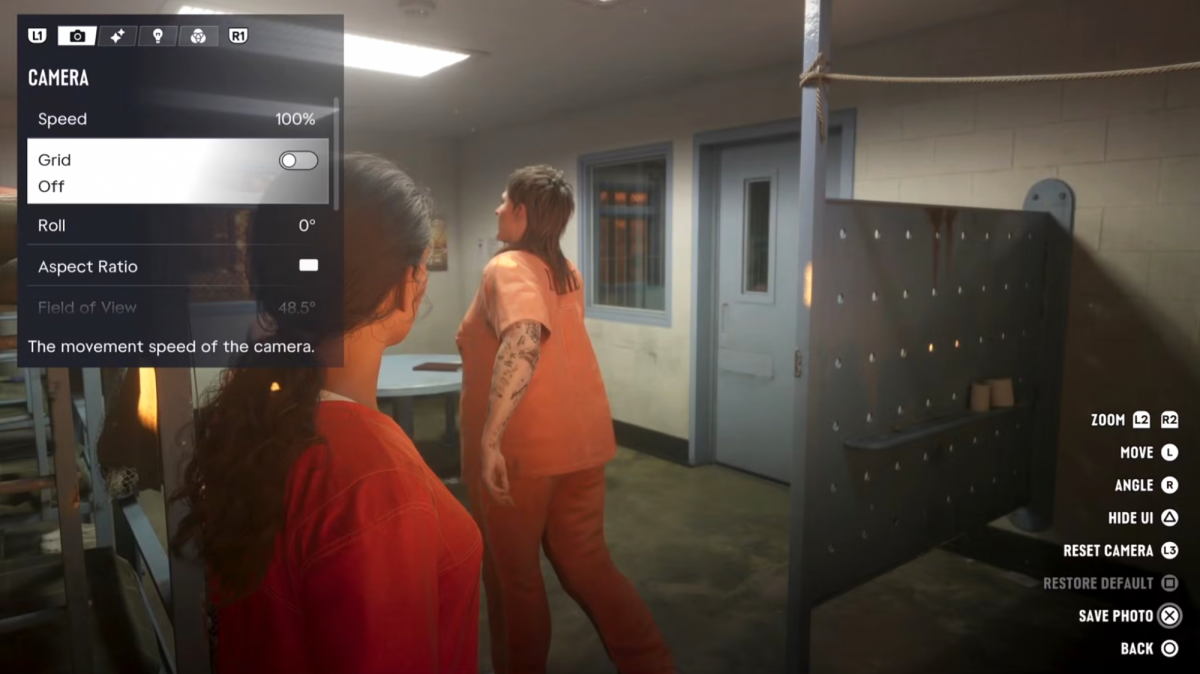
Rockstar has packed Photo Mode with numerous features that let you customize almost every aspect of your screenshots, including camera positioning, lighting, and visual effects. Here's a breakdown of all the available options.
|
Category |
Photo Mode Feature |
What Does It Do? |
|---|---|---|
|
Camera |
Speed |
Controls the movement speed of the camera. |
|
Grid |
Displays grid lines for easier positioning. |
|
|
Roll |
Tilts the camera to your desired angle. |
|
|
Aspect Ratio |
Lets you choose one of eight available aspect ratios for your screenshot. |
|
|
Field of View |
Adjusts the field of view up to 48.5 degrees. |
|
|
Depth of Field |
Adds a bokeh effect to your shots. |
|
|
Aperture |
Adjusts the amount of blur and focus in the image. |
|
|
Focus Distance |
Changes the distance at which the camera focuses. |
|
|
Focus Guide |
Uses a hologram to show which areas are in focus and which are out of focus. |
|
|
Character |
Hide or Show |
Hides or displays the player character (Jason or Lucia). |
|
Effects |
Exposure |
Adjusts the overall brightness. |
|
Contrast |
Controls the difference between light and dark areas. |
|
|
Highlights |
Adjusts the brightness of the brightest parts of the scene. |
|
|
Shadows |
Adjusts the brightness of the darkest parts of the scene. |
|
|
Saturation |
Controls the intensity of colors in the image. |
|
|
Sharpness |
Adds sharpness and detail to the image. |
|
|
Grain |
Adds a film grain texture to the image. |
|
|
Temperature |
Adjusts warm and cool color tones. |
|
|
Tint |
Balances the colors in the image. |
|
|
Gamma |
Adjusts the image's tonal levels. |
|
|
Lens Flare |
Controls the intensity of light streaks. |
|
|
Bloom |
Adds or reduces the glow around bright areas. |
|
|
Chromatic Aberration |
Adjusts color distortion around the edges of objects. |
|
|
Lighting |
Lighting Sources |
Lets you add up to five different light sources to your image. |
|
Overlays |
Gameplay Effects |
Adds or removes current gameplay effects, such as low-health indicators. |
|
Filter |
Choose from 17 different cosmetic filters. |
|
|
Vignette |
Darkens the edges of the image. |
|
|
Color Isolation |
Highlights individual colors while fading out the others. |
How to Use the Smartphone Camera and Take Selfies in GTA 6
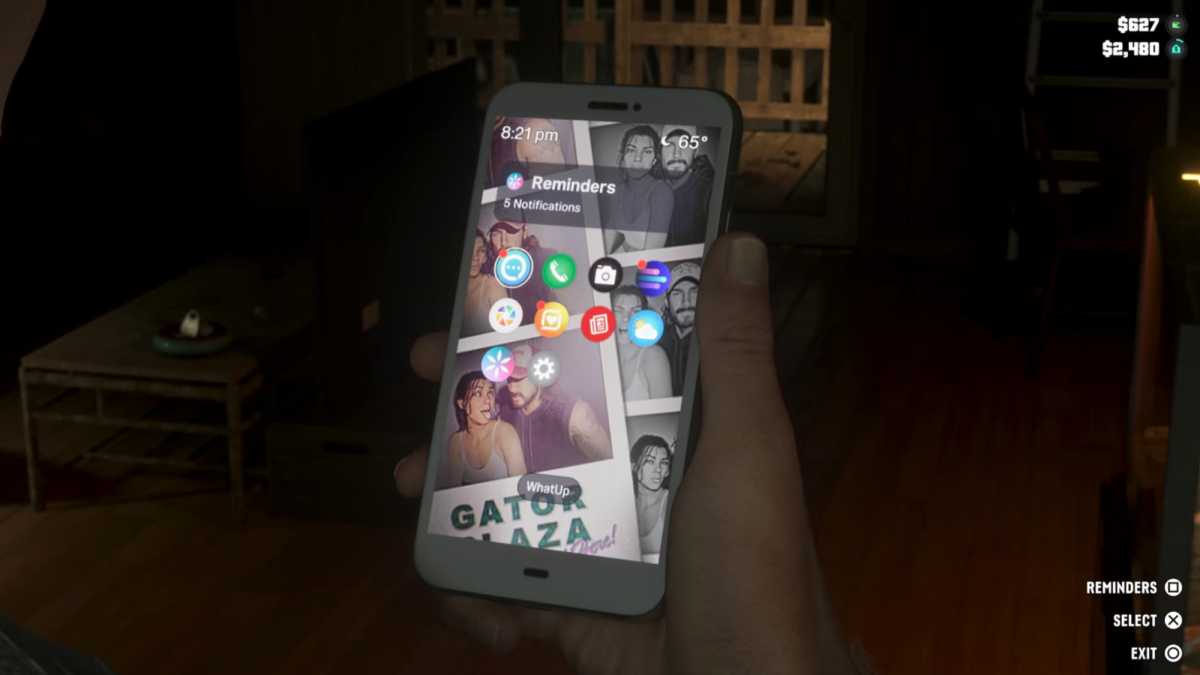
You'll unlock the option to use your smartphone after progressing through Lucia's section of the prologue and eventually taking control of Jason.
To use the smartphone camera in GTA 6, first open your phone by pressing Up on the D-Pad. Once it's on the screen, select Camera, the third icon in the first row.
GTA 6 Smartphone Camera Features
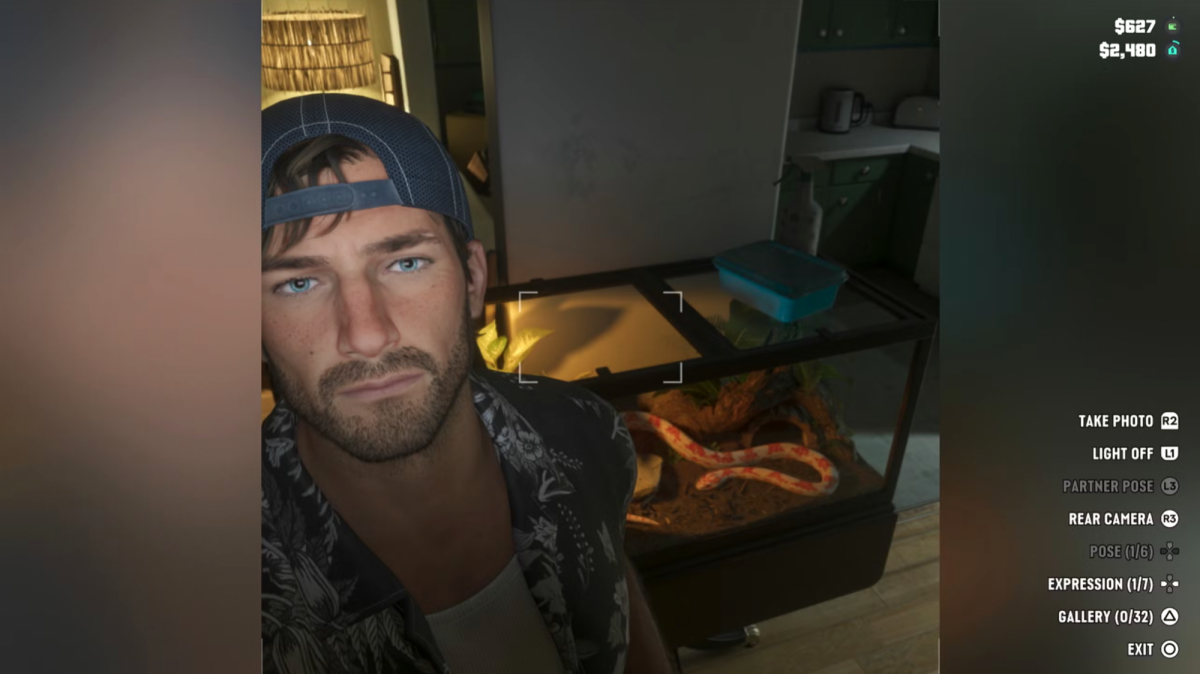
Once you're in camera mode, you can take pictures using the rear camera or switch to the front-facing camera to take selfies. The two camera modes offer some different options.
Both the rear and front cameras share several features, while each also has its own unique settings.
|
Camera Mode |
Camera Feature |
What Does It Do? |
|---|---|---|
|
Both |
Take Photo |
Captures the image you've lined up with the camera. |
|
Light |
Turns the smartphone's flash on or off when taking pictures. |
|
|
Gallery |
Lets you view your captured photos. |
|
|
Rear Camera (Back) |
Show Grid |
Displays 3x3 grid lines to help position your shot. |
|
Selfie |
Switches to the front-facing selfie camera. |
|
|
Zoom |
Lets you zoom in on a subject up to 5x. |
|
|
Filter |
Provides up to 17 cosmetic filters. |
|
|
Front Camera (Selfie) |
Partner Pose |
Changes your partner's pose in the selfie. |
|
Rear Camera |
Switches back to the rear-facing camera. |
|
|
Pose |
Changes Jason's pose in the selfie, with up to six options. |
|
|
Expression |
Changes Jason's facial expression in the selfie, with up to seven options. |
Comments