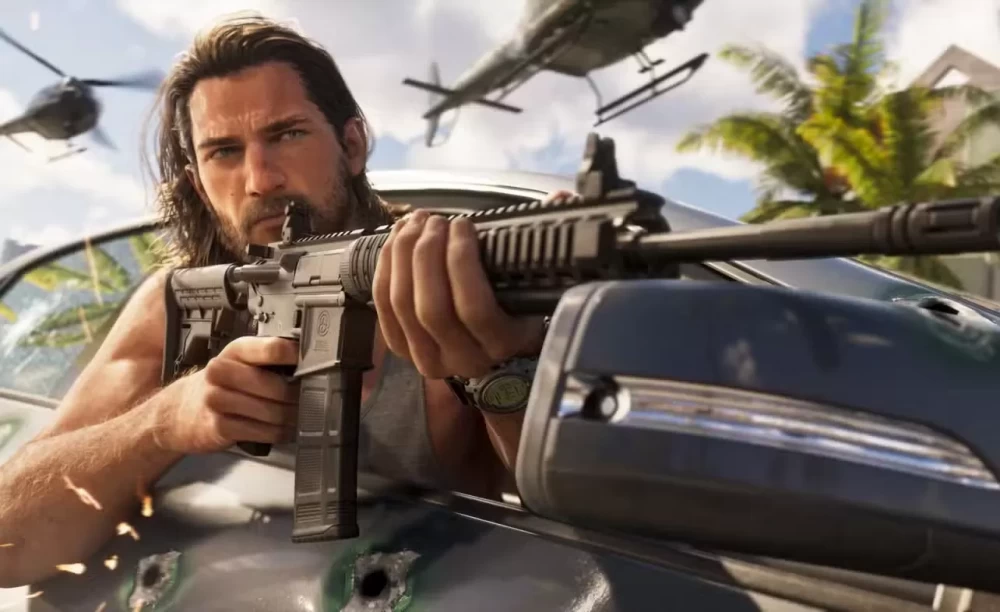
The first thing Rockstar recommends before starting your journey in Vice City is checking the settings and customizing them to your liking. There's a good reason for this: Grand Theft Auto 6 offers a wide range of options that affect almost every aspect of gameplay, including aiming and gunplay.
Aim assist in GTA 6 is entirely optional. The game offers several levels of assistance, allowing players to choose what works best for their playstyle. Whether you want to enjoy casual shootouts or give yourself a serious challenge, you can customize the aiming system to your preferences.
How to Change Aim Settings
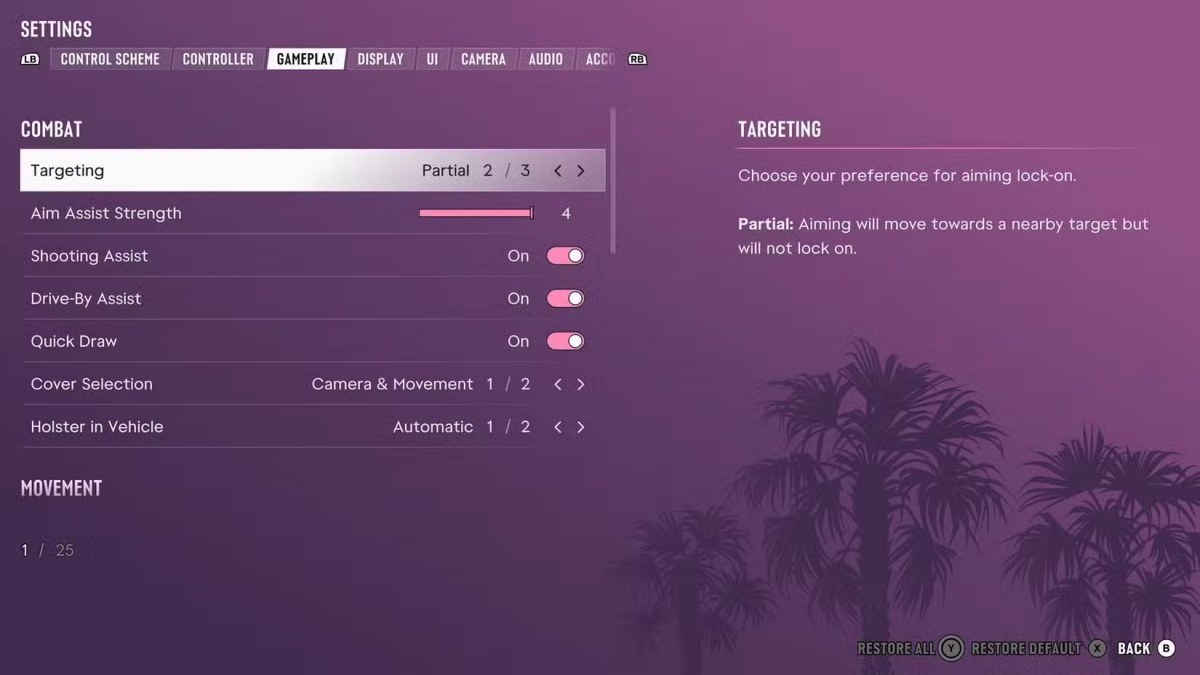
Open the pause menu and select Settings. Then navigate to the Gameplay tab. The first options under Combat let you adjust your aiming and gunplay settings.
Every Targeting System Explained (Lock-On vs. Partial vs. Free Aim)
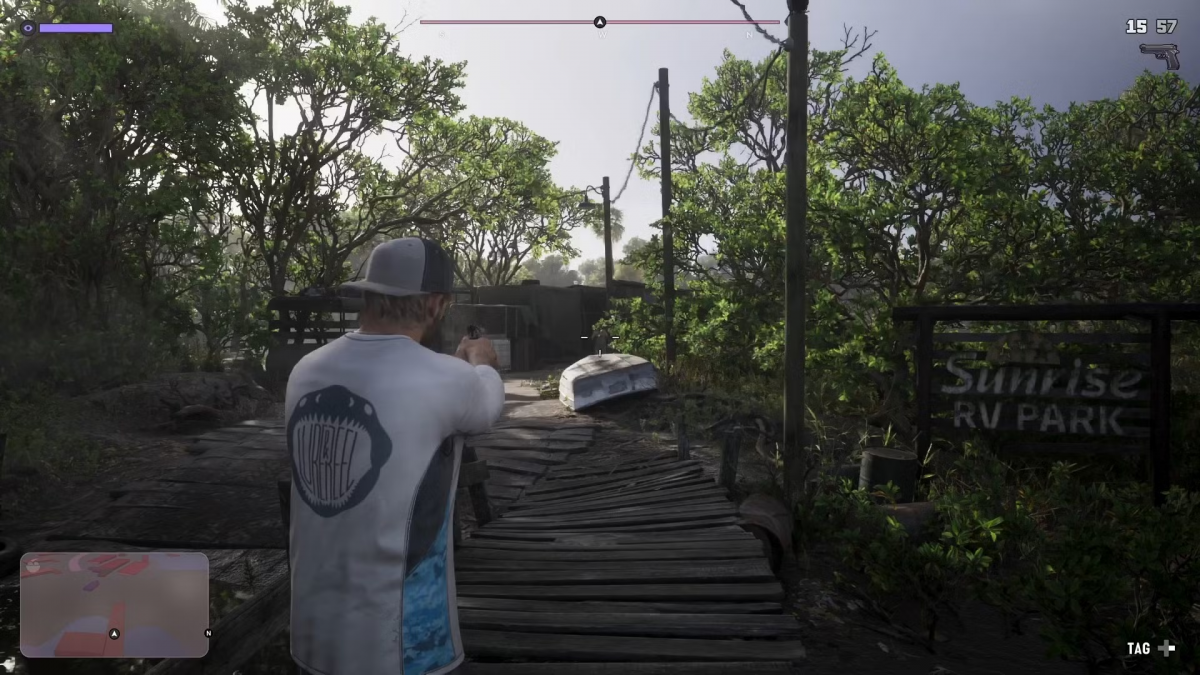
Lock-On is the most beginner-friendly aiming option. If there's a valid target near your reticle, the system will automatically lock onto it as soon as you aim by holding L2.
The Partial system offers a middle ground. It doesn't instantly lock onto targets near your reticle. Instead, when you move your aim toward an enemy, the system automatically slows down the reticle, making it easier to keep your target in sight and avoid missing shots.
Free Aim completely disables standard aim assist. The game won't automatically slow down your reticle or help you line up shots, so you'll have to control your aim yourself.
However, the Shooting Assist feature can still provide quick lock-ons against nearby enemies, even with Free Aim enabled. If you want absolutely no assistance from the game, make sure to turn this option off as well.
Best Aim Settings for Casual Gameplay in GTA 6
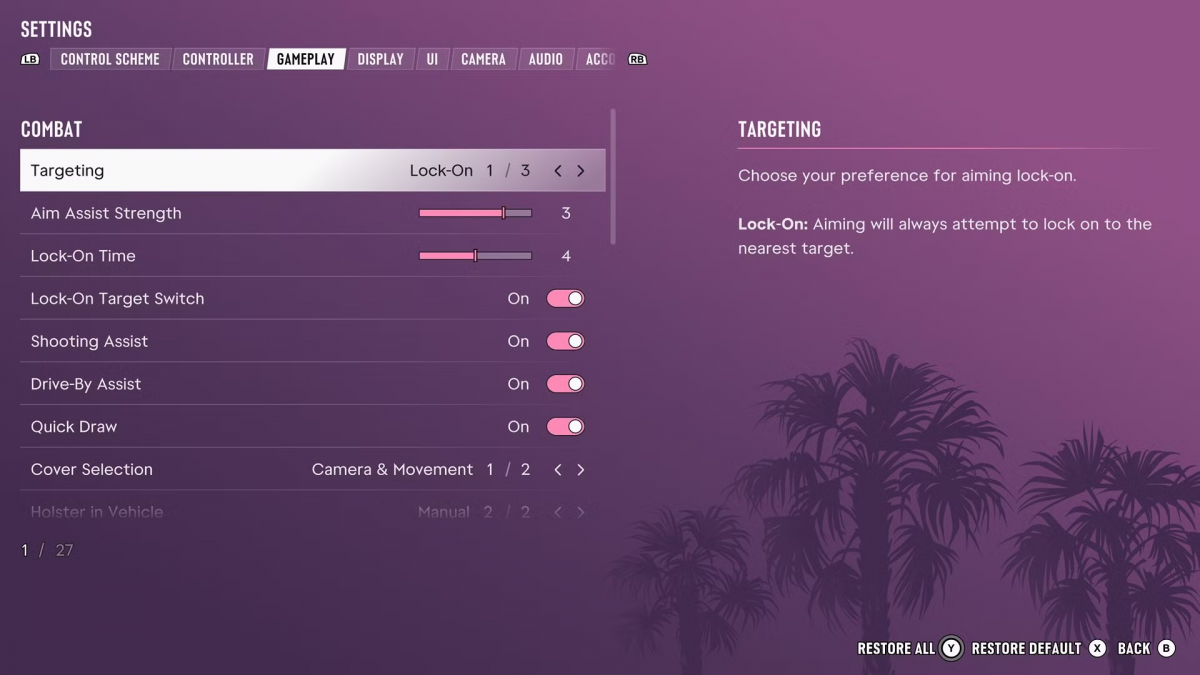
Here are the recommended settings for a more comfortable experience:
-
Targeting: Lock-On
-
Aim Assist Strength: 3
-
Lock-On Time: 5
-
Lock-On Target Switch: On
-
Shooting Assist: On
-
Drive-By Assist: On
-
Quick Draw: On
First, let's clarify that casual gameplay doesn't mean removing every challenge. Even with all assistance options enabled, shootouts still require some basic skills. These settings are aimed at players who have some experience with the gunplay but don't want every firefight to become a serious test.
Lock-On is the best option for players who prefer easier shootouts. In this mode, Aim Assist Strength isn't particularly important because the system locks onto enemies and automatically tracks their movements. As a result, the reticle slowdown effect doesn't play much of a role.
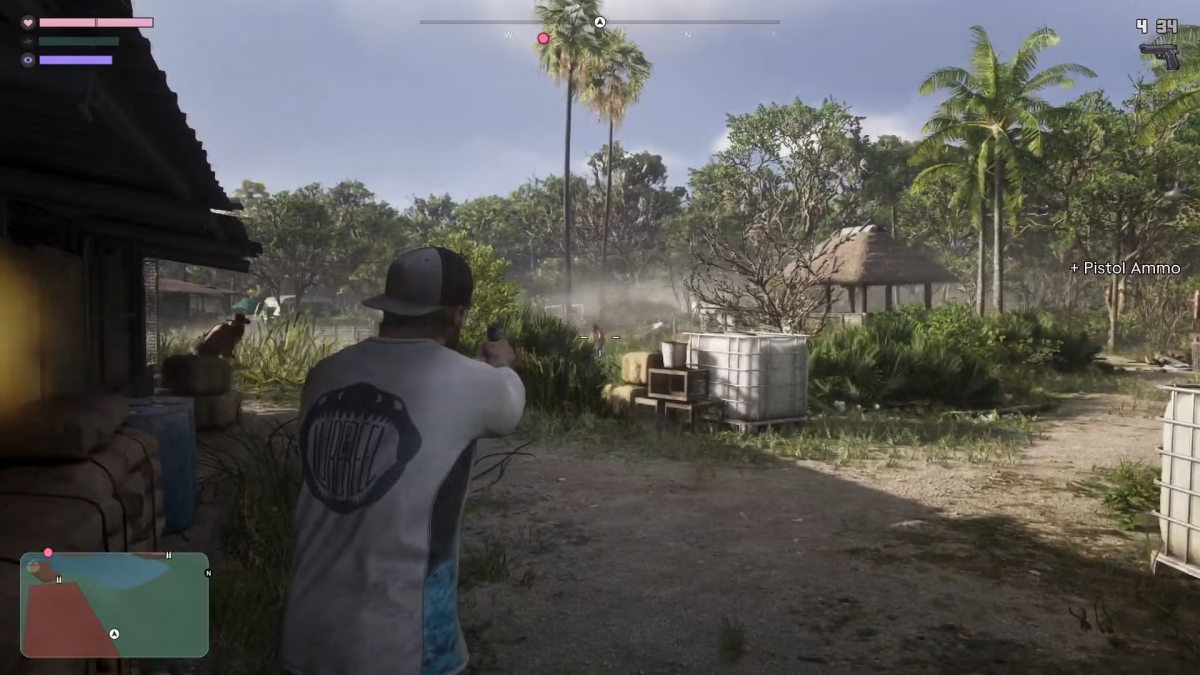
The more important setting is Lock-On Time. It determines how effectively the system helps you track moving targets. At its maximum value, your aim will follow enemies much more reliably, even when they're moving quickly. In my experience, 5 offers a good balance. However, if you struggle to hit moving enemies, try increasing it to the maximum.
Lock-On Target Switch only works when multiple enemies are near your reticle. When enabled, you can lock onto one target and then flick the right stick left or right to instantly switch to another available enemy. This is particularly useful during crowded shootouts.
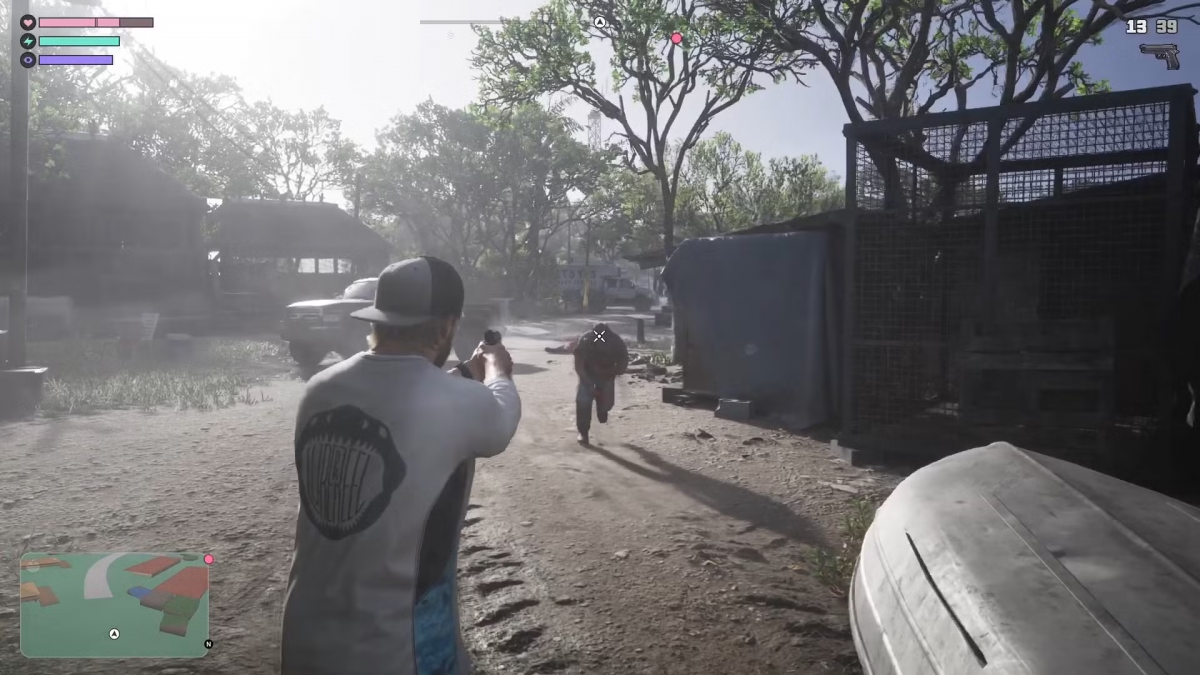
Drive-By Assist handles automatic aiming while driving. When enabled, your character will automatically aim at the nearest target while you're controlling a vehicle.
The final setting is Quick Draw. It lets you quickly pull out your previously equipped weapon by holding the aim button (L2 / LT) and then pressing the fire button (R2 / RT). This feature is useful in many situations, so it's worth keeping enabled.
If you turn Quick Draw off, you'll have to open the weapon wheel every time you want to equip a weapon.
Best Aim Settings for Hardcore and Realistic Gameplay in GTA 6
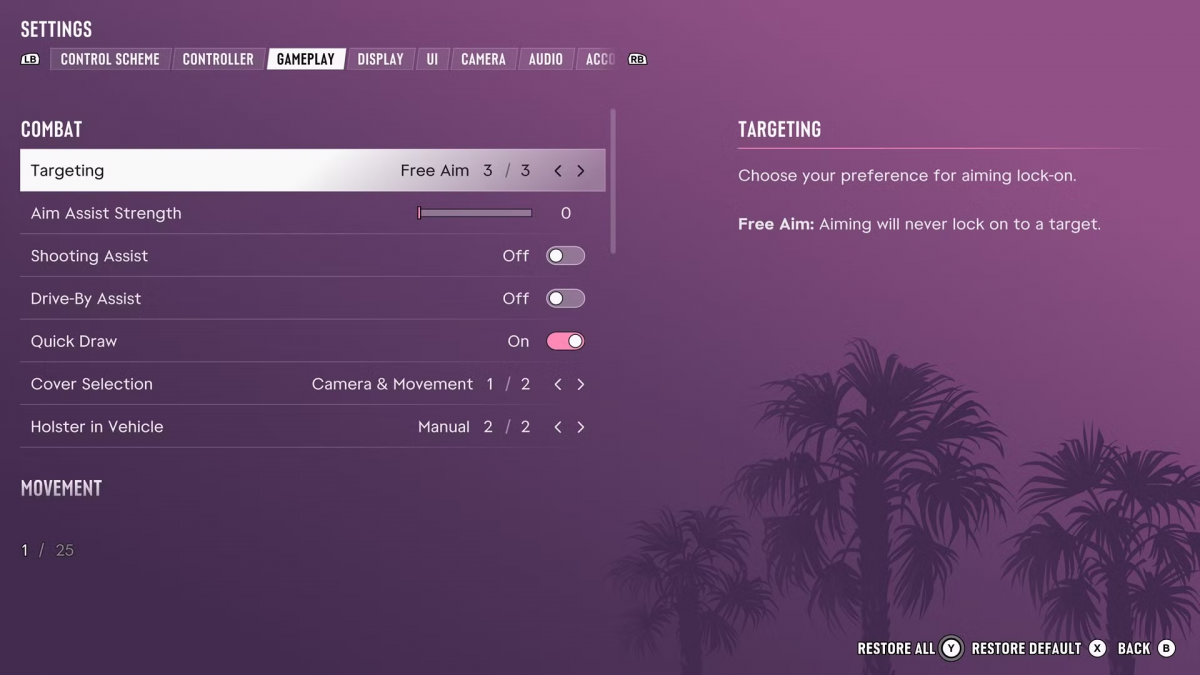
If you want to make shootouts more challenging and gunplay feel more realistic, try these settings:
-
Targeting: Free Aim
-
Aim Assist Strength: 0
-
Shooting Assist: Off
-
Drive-By Assist: Off
-
Quick Draw: On
The good news for players who enjoy a challenge is that GTA 6 lets you completely disable aiming assistance. Free Aim is the best option if you find the default targeting settings too forgiving.
With this mode, your reticle won't automatically slow down when moving over enemies. However, quick lock-ons against nearby targets may still work, so make sure to disable Shooting Assist if you want to remove all aiming assistance.
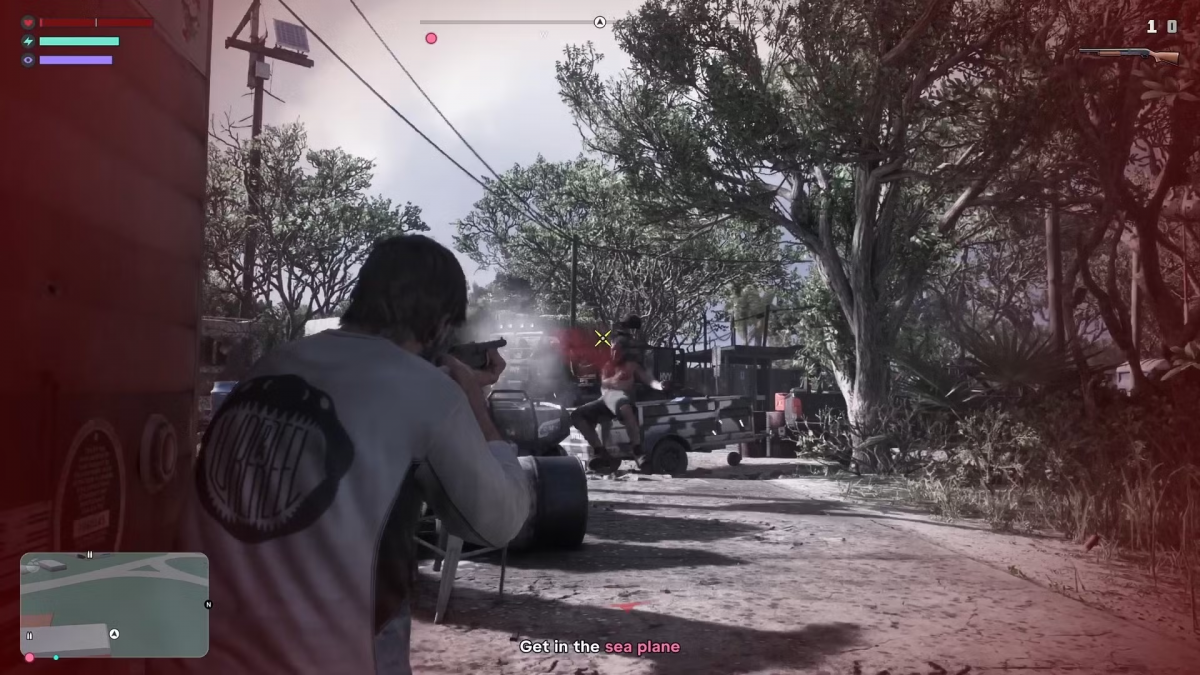
I'd still recommend keeping Quick Draw enabled. This feature doesn't affect aiming difficulty or realism; it simply lets you draw your weapon faster without opening a menu.
These settings should already make shootouts considerably more challenging. However, if you want to take things even further, you can remove the reticle from the screen entirely. This forces you to estimate your shots yourself and rely on your own accuracy.
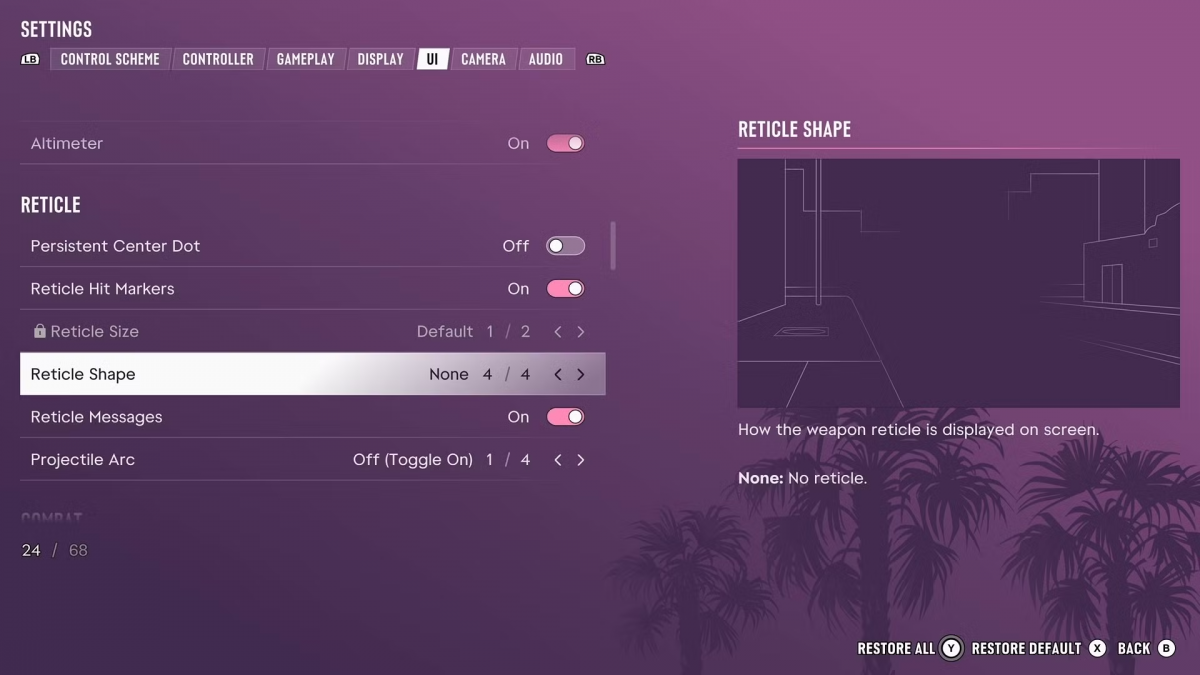
To disable the reticle, open the UI tab, scroll down through the available options, and find Reticle Shape. Set it to None.

Comments