
Grand Theft Auto 6 runs at 30 FPS on PS5, but you can use third-party software like Veyra to generate additional frames and make the game appear to run at 60 FPS. To set this up, you'll need a PS5, a Windows PC with a compatible graphics card, and a capture card if you want the lowest possible input delay.
Veyra uses your PC to process the video feed from your console, applying features such as Frame Generation and image enhancement. Below, we'll walk you through the setup process using both PS5 Remote Play and a capture card.
How to Install Veyra (& How It Works)
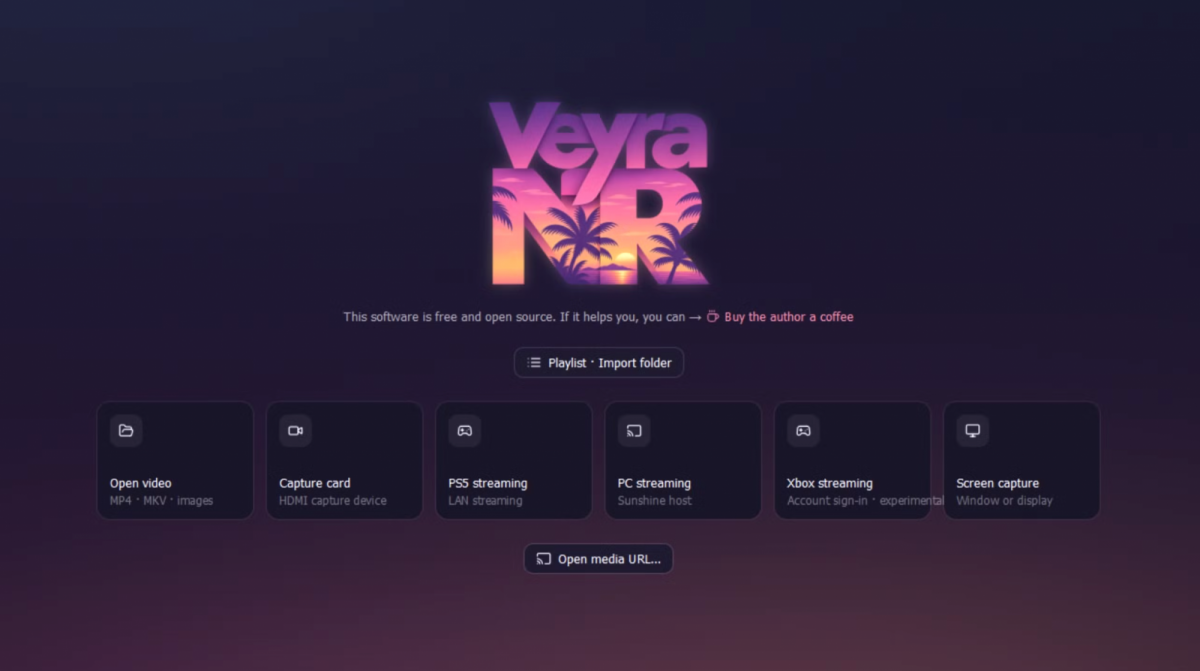
Veyra is third-party Windows software that turns your PC into a real-time video enhancement pipeline. It can process footage from a capture card or stream your PS5 through Remote Play, offering features such as Frame Generation and AI-powered image enhancement.
To install Veyra, follow these steps:
-
Visit the Veyra GitHub page and download the latest release compatible with your graphics card.
-
Extract the downloaded archive.
-
Run veyra_qml_ui.
-
Choose between PS5 Streaming and Capture Card.
There are two important differences between these options:
-
PS5 Streaming uses Remote Play to stream your console to your PC. This method is easier to set up, but it introduces additional input delay.
-
Capture Card processes the video signal directly through a capture device connected to your PC. This generally provides lower input delay.
How to Use Veyra for PS5 Remote Play
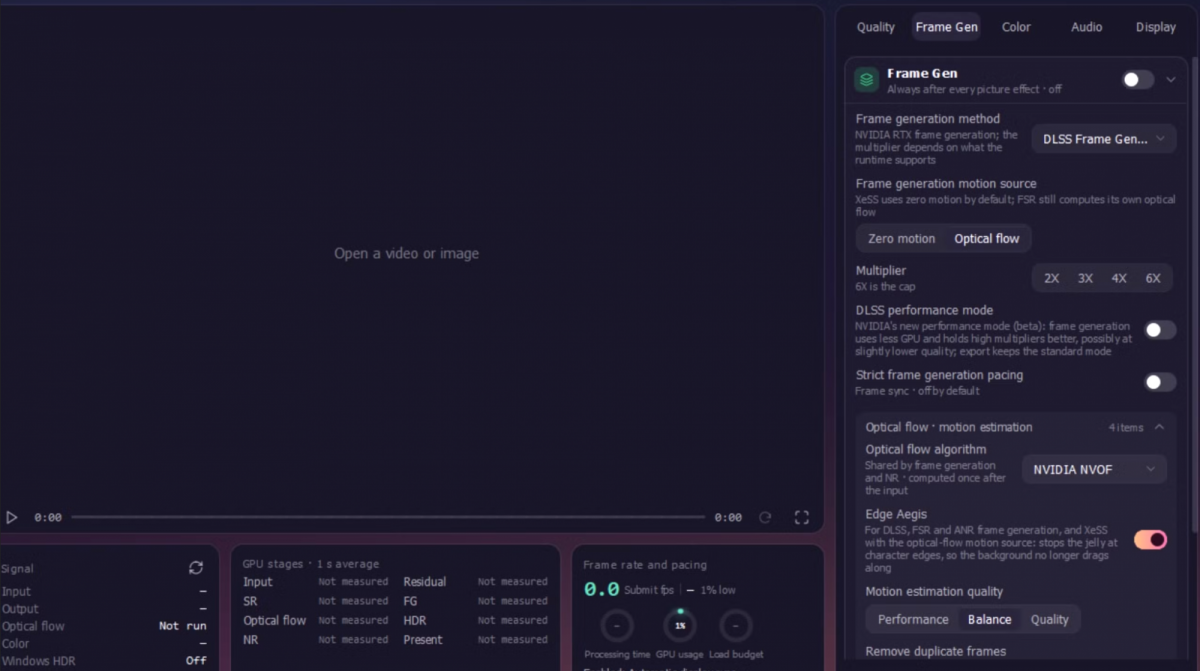
If you don't have a capture card, you can use Veyra with PS5 Remote Play instead. Here's how to set it up:
-
On your PS5, open System Settings and enable Remote Play.
-
Find your console's IP address under Console Information and enter it into the Saved Host Address field in Veyra. Then click Search.
-
Use PSN_Checker to retrieve your PSN Account ID and enter it into the corresponding field in Veyra.
-
Enter your Remote Play code into Veyra's 8-digit pairing code field, then select Pair and save your settings.
-
Click Connect to start streaming your PS5 to your PC.
-
Move your mouse to the top of the Veyra window and open the Pro Mode tab.
-
Under Frame Gen, change the Multiplier to 2X to generate additional frames and target 60 FPS.
Keep in mind that Remote Play introduces extra input delay, which can make the game feel less responsive. For a better experience, consider using a capture card instead. You can also stick with the console's native 30 FPS output if responsiveness is more important than smoother-looking motion.
How to Use Veyra With a PS5 Capture Card
If you have a capture card, you can use it instead of Remote Play to reduce additional streaming delay. Follow these steps:
-
Connect your PS5's HDMI cable to the capture card's HDMI input.
-
Connect the capture card to your PC using a USB cable.
-
Open Veyra, select Capture Card, and choose your device under Video Input Device.
-
Click Connect and then Start.
-
Open the Pro Mode tab and navigate to Frame Gen.
-
Change the FPS Multiplier to generate additional frames.



Comments